Offload Media
Connect Cloudflare and offload CollectionStation media through Images, Stream, and R2.
Last updated About 3 hours ago
Cloudflare media offload stores and delivers CollectionStation files through Cloudflare Images, Stream, and R2. That keeps large files off Supabase Storage and serves them from Cloudflare. This article covers the connection, each media type, and the bulk tools.
Connection
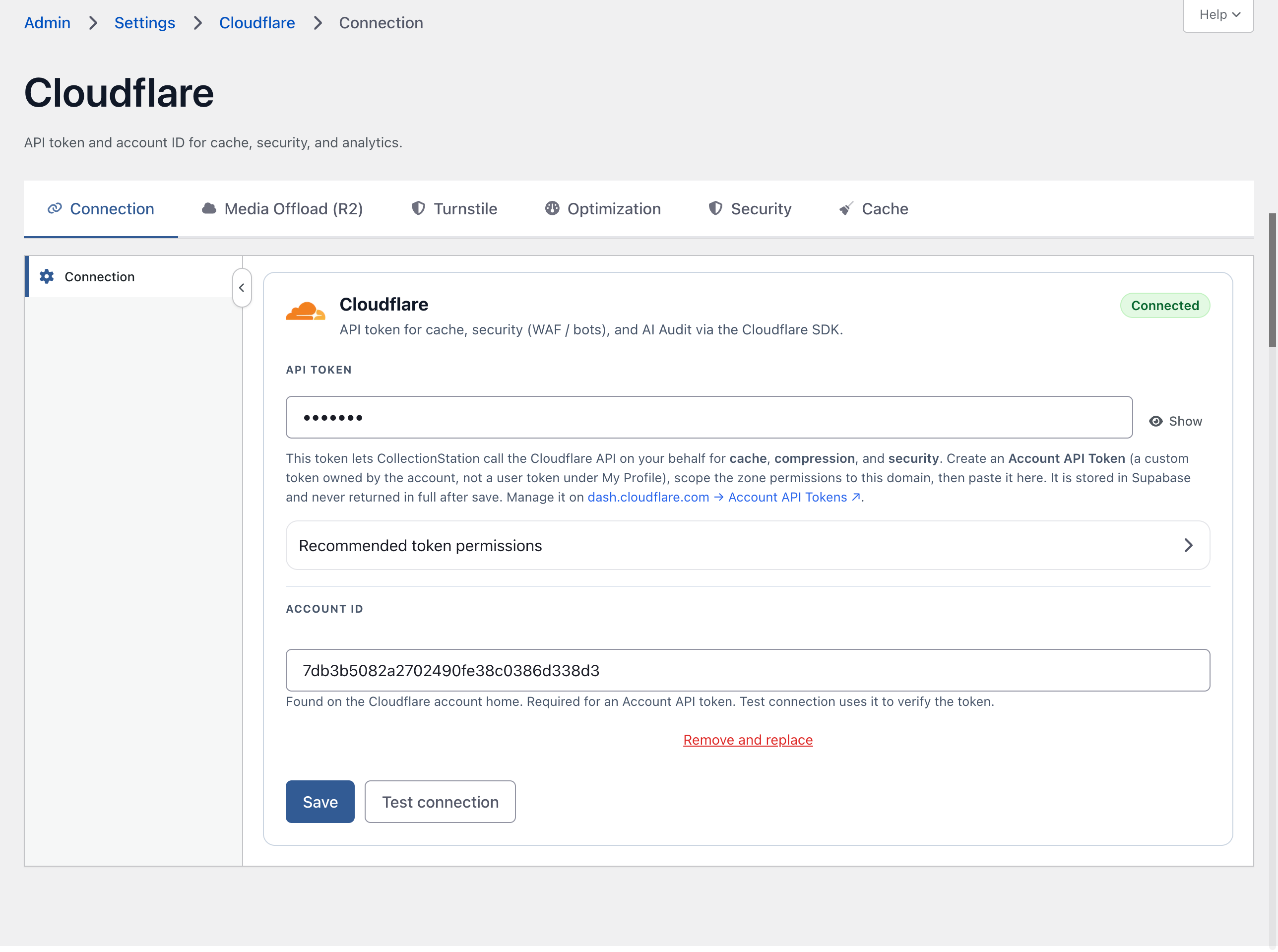
In admin, open Settings → Cloudflare → Connection. Enter your Cloudflare Account ID and Account API Token, save, then choose Test connection. The status shows Connected when the token can read the account.
That Account API token is for zone and account settings such as cache, security, and Turnstile. Media storage uses the separate credentials on the Media Offload pages.
General
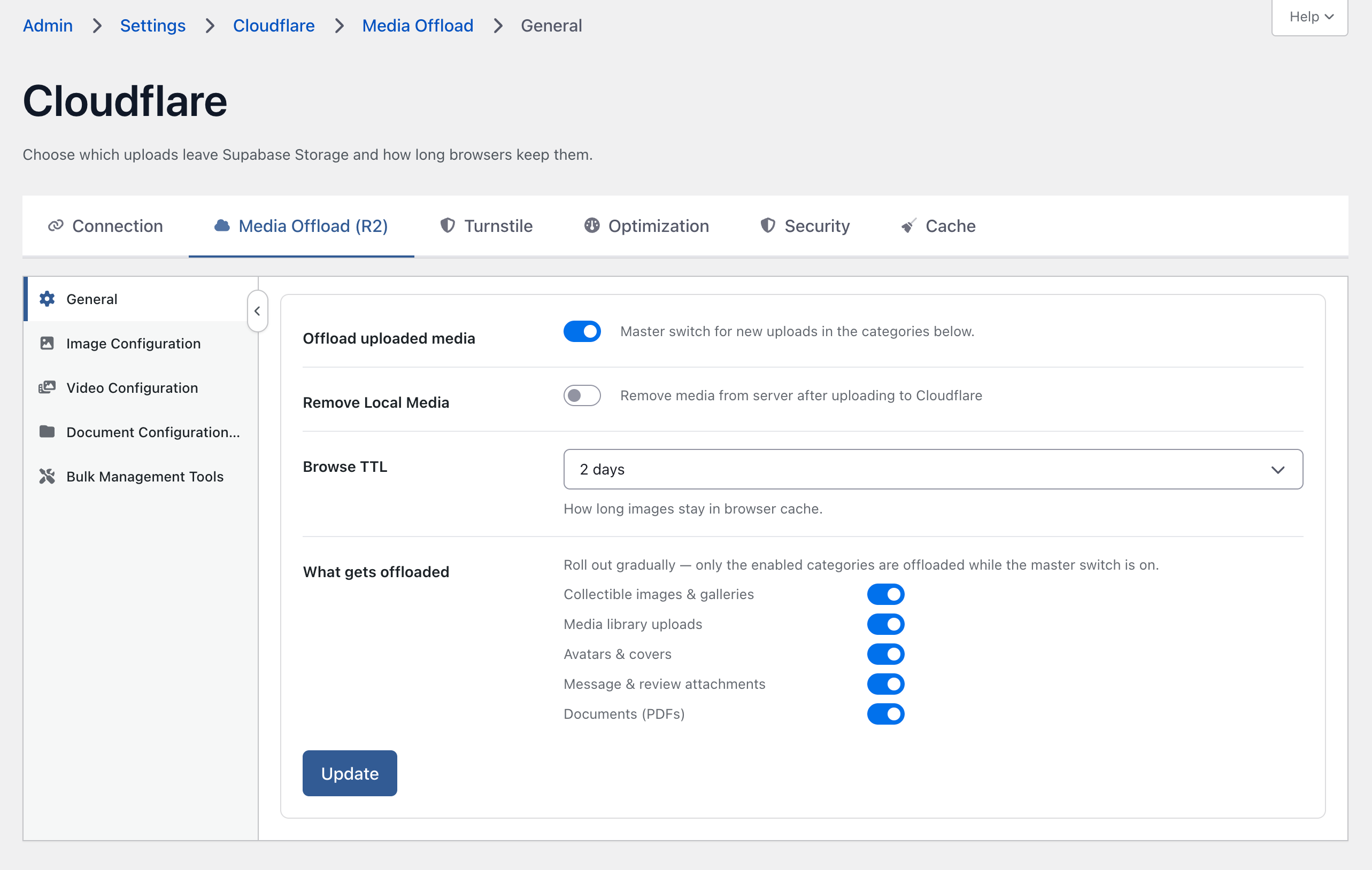
Open Settings → Cloudflare → Media Offload (R2) → General, then choose Update to save.
Offload uploaded media is the master switch. The category switches apply only while it is on.
Remove Local Media deletes the Supabase Storage copy after a successful upload to Cloudflare.
Browse TTL sets how long browsers keep new R2 files. Options are Respect existing headers, 1 hour, 1 day, 2 days, 7 days, 30 days, and 1 year.
What gets offloaded includes Collectible images and galleries, Media library uploads, Avatars and covers, Message and review attachments, and Documents (PDFs).
Collectible photos stay on the public bucket. Message and review attachments go to the private bucket when that category is on and a private bucket is selected. Older public attachment links keep working.
Image Configuration
Open Image Configuration. Enter the Cloudflare Images Key Token. The Signed Token is optional and is only needed when Images URLs must be signed. Save, then confirm the connection badge shows Connected.
Serve from custom domain delivers Images from your own hostname. Offload non-compliant Images to R2 stores images that miss the Images rules in the document R2 bucket. Images must stay within 12,000 pixels on an edge, 10 MB, and 100 megapixels. Supported formats are PNG, GIF, JPEG, WebP, and SVG.
Video Configuration
Open Video Configuration. Enter the Stream API Token, save, and confirm the connection badge shows Connected.
Serve from custom domain delivers Stream from your own hostname. Offload non-compliant Videos to R2 stores videos that fail Stream validation in the document R2 bucket. Supported formats include MP4, MKV, MOV, AVI, FLV, MPEG-2 TS, MPEG-2 PS, MXF, LXF, GXF, 3GP, WebM, MPG, and QuickTime.
Document Configuration (R2)
Open Document Configuration (R2). These credentials are the S3 keys for R2, separate from the Account API token.
Enter the Account ID. It is used when End Point is Default.
Enter the Access Key ID and Secret Access Key, then save.
Set End Point to Default, or Custom if you need a specific S3 endpoint.
Set the Public delivery URL to the hostname that serves the public bucket.
Choose Refresh to load bucket names, then select the Public Bucket and the Private Bucket.
The public bucket holds catalog media and other public files. Leave public access off on the private bucket. Message and review attachments are stored there and opened with a short-lived link.
Bulk Management Tools
Open Bulk Management Tools. Each action asks you to confirm before it starts. While one tool is running, the other tools are read-only. The running tool shows a progress bar with Pause, Resume, and Cancel. Pause becomes Resume. The bar disappears at 100%.
Offload all media (Start Offloading) moves existing Supabase Storage files to Cloudflare. New uploads follow the category switches on General. Check Status reports whether anything is still waiting.
Download all files bucket to server (Download Files) restores missing Supabase Storage copies for files that already live in Cloudflare. It does not overwrite a copy that is already there.
Delete all files from bucket (Delete All Bucket Files) removes files from Cloudflare. If a file is missing on Supabase Storage, it is downloaded back first.
Delete all files from server (Delete All Local Files) removes Supabase Storage copies that already have a Cloudflare copy.
Check Status is available on Offload all media and Download all files. The delete tools do not have Check Status.
Was this helpful?
Still need help? Share an idea